01
Choose two, four, or five parts
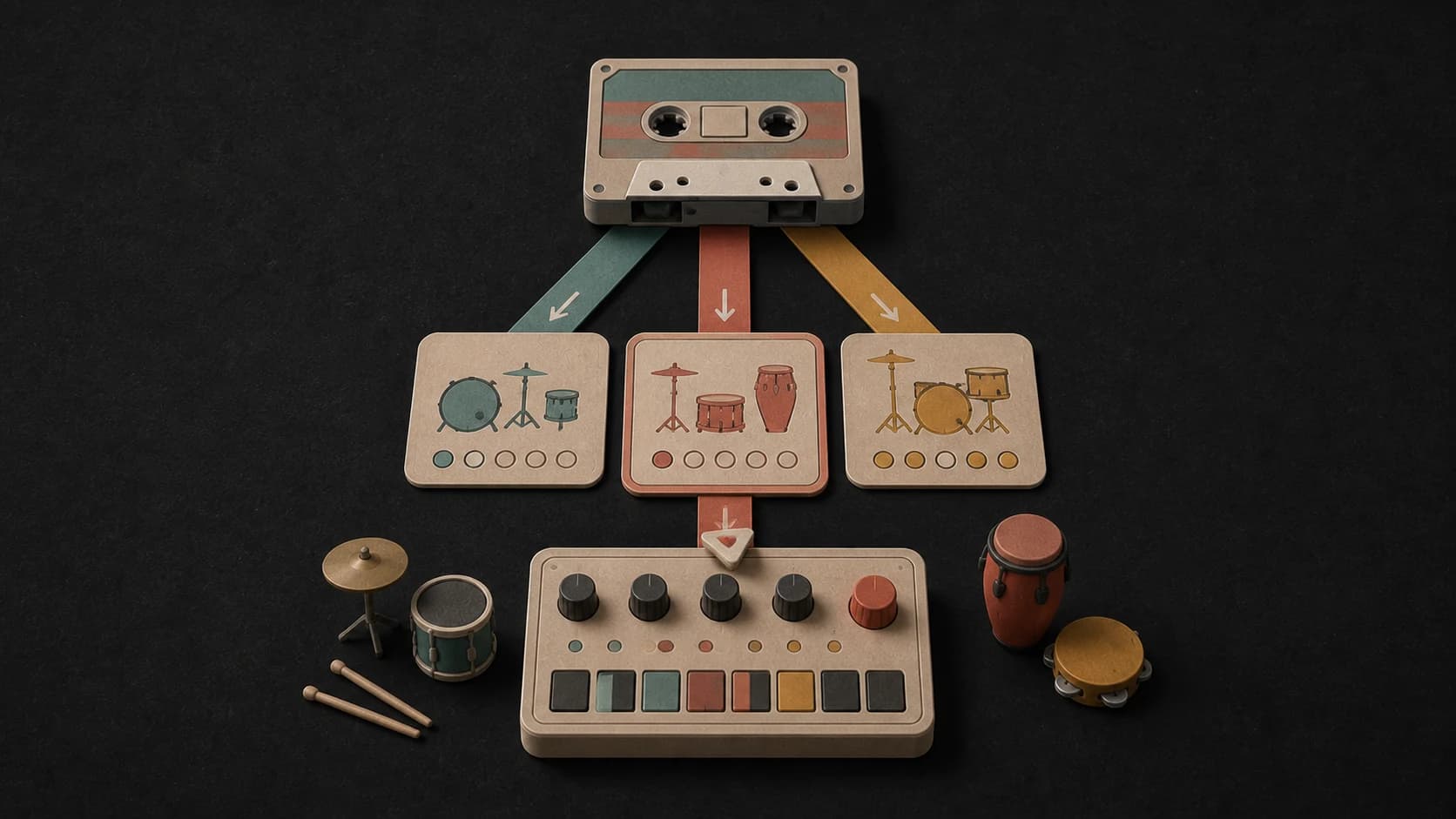
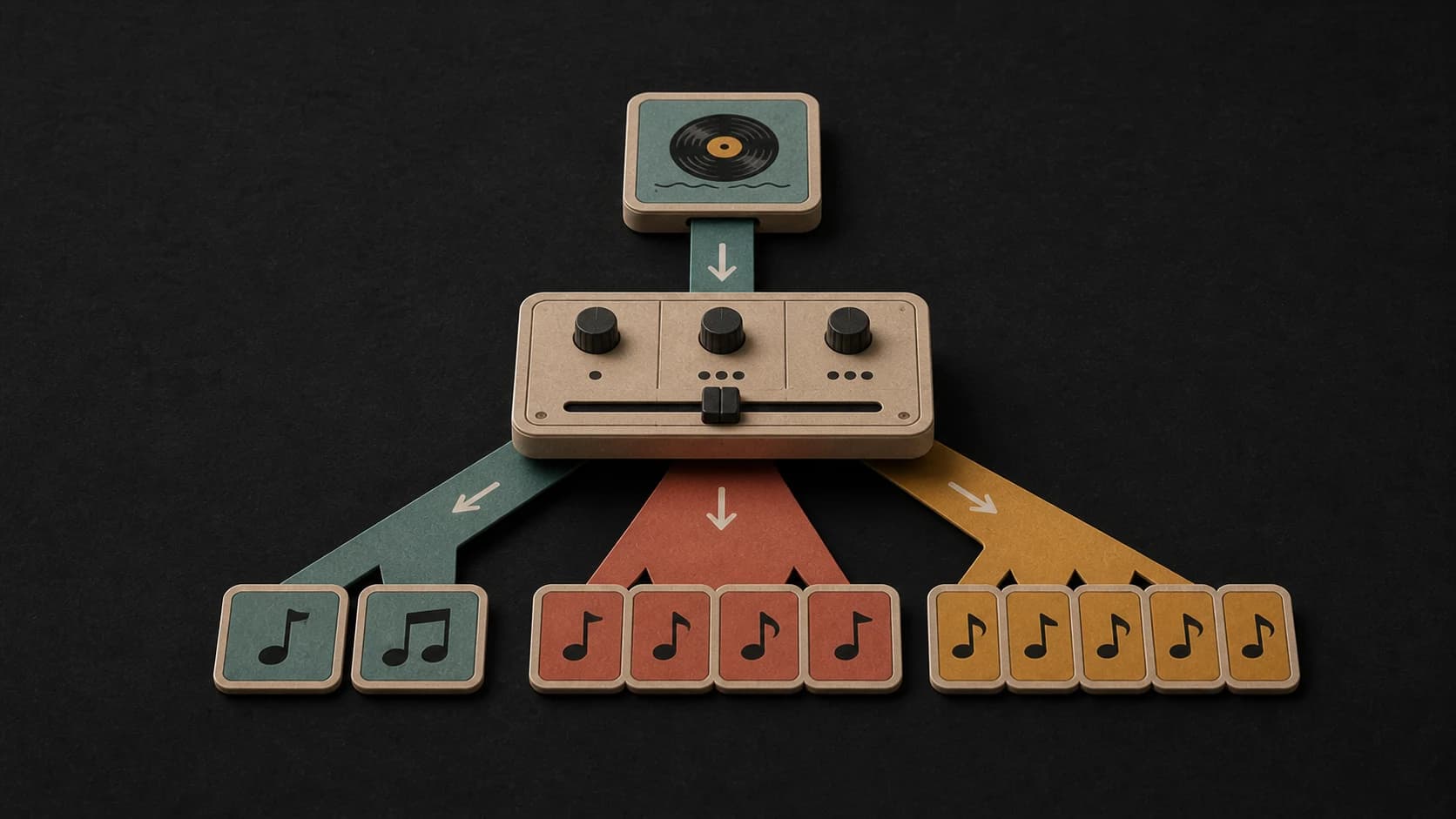
Use two stems for vocals and instrumental, four for vocals, drums, bass, and other, or five when you also want piano separated.
MusicWave audio tool
Upload a track and separate it into vocals, drums, bass, piano, instrumental, or other parts you can play and download.
What the splitter gives you
The splitter keeps the choices clear before processing and gives every completed stem its own player and download.
Use two stems for vocals and instrumental, four for vocals, drums, bass, and other, or five when you also want piano separated.
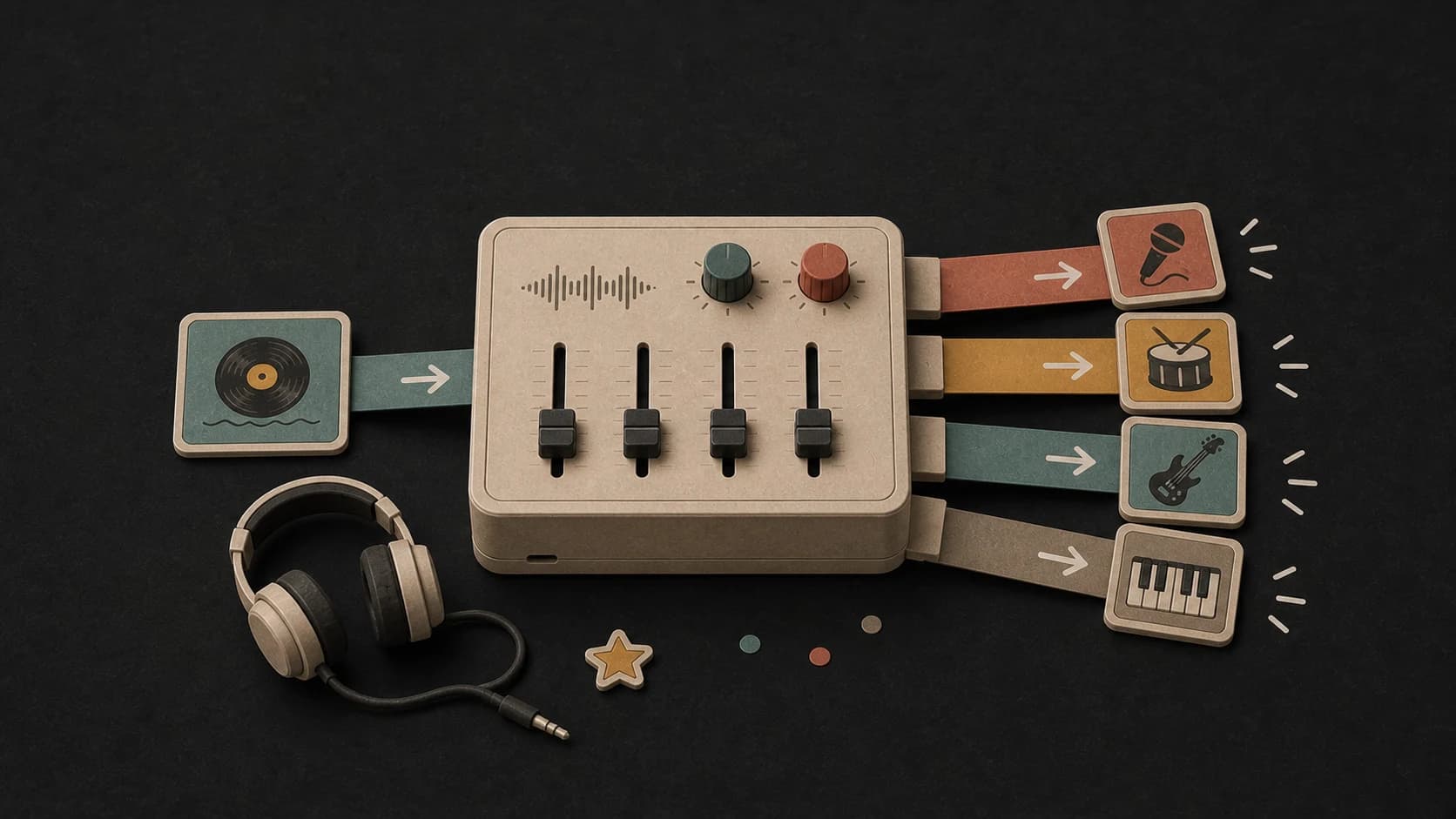
Keep every available part selected, or turn off the layers you do not plan to download before starting the split.
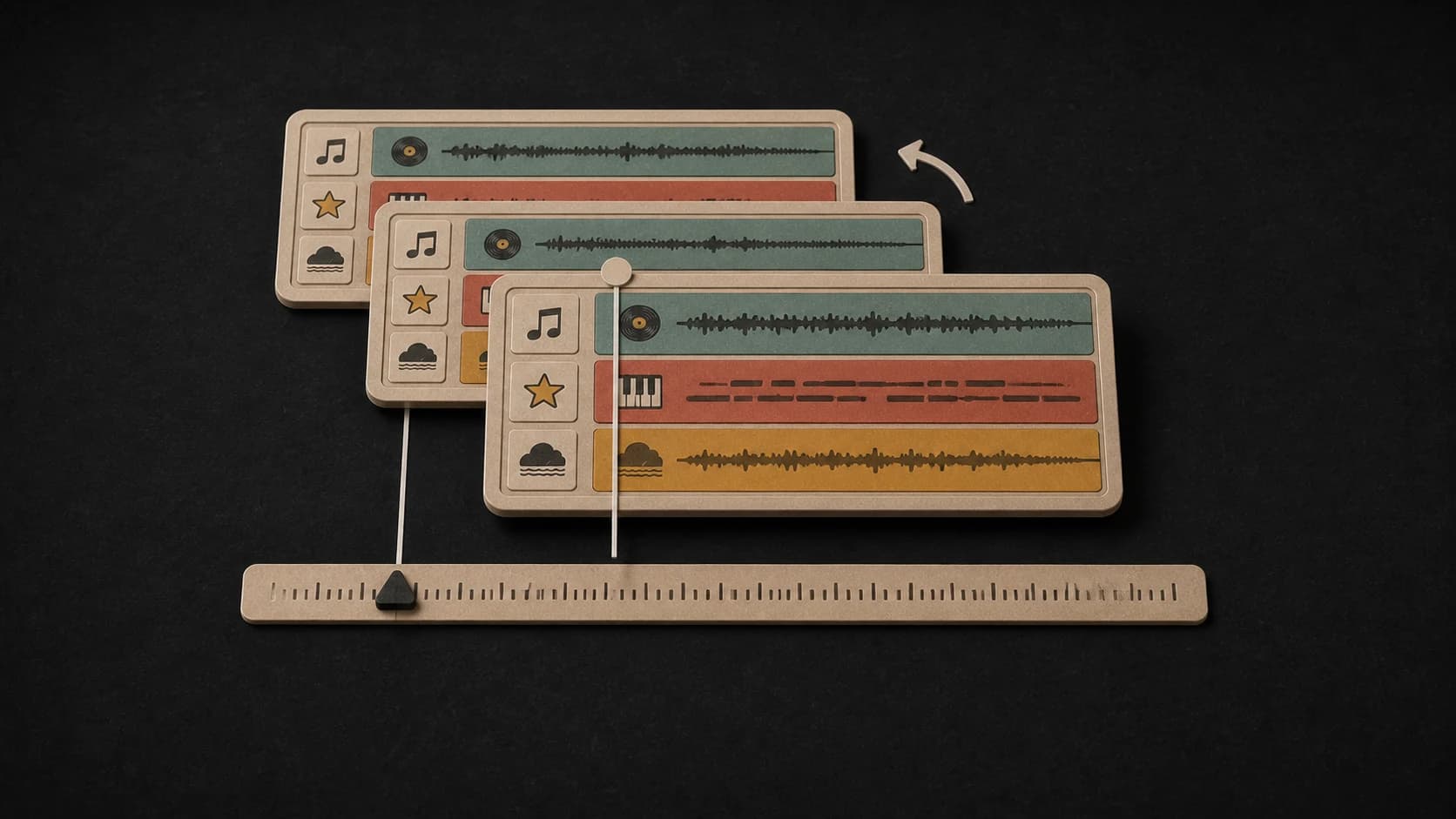
Returned stems start from the same point, so they can line up again when you place them together in an editor or DAW.
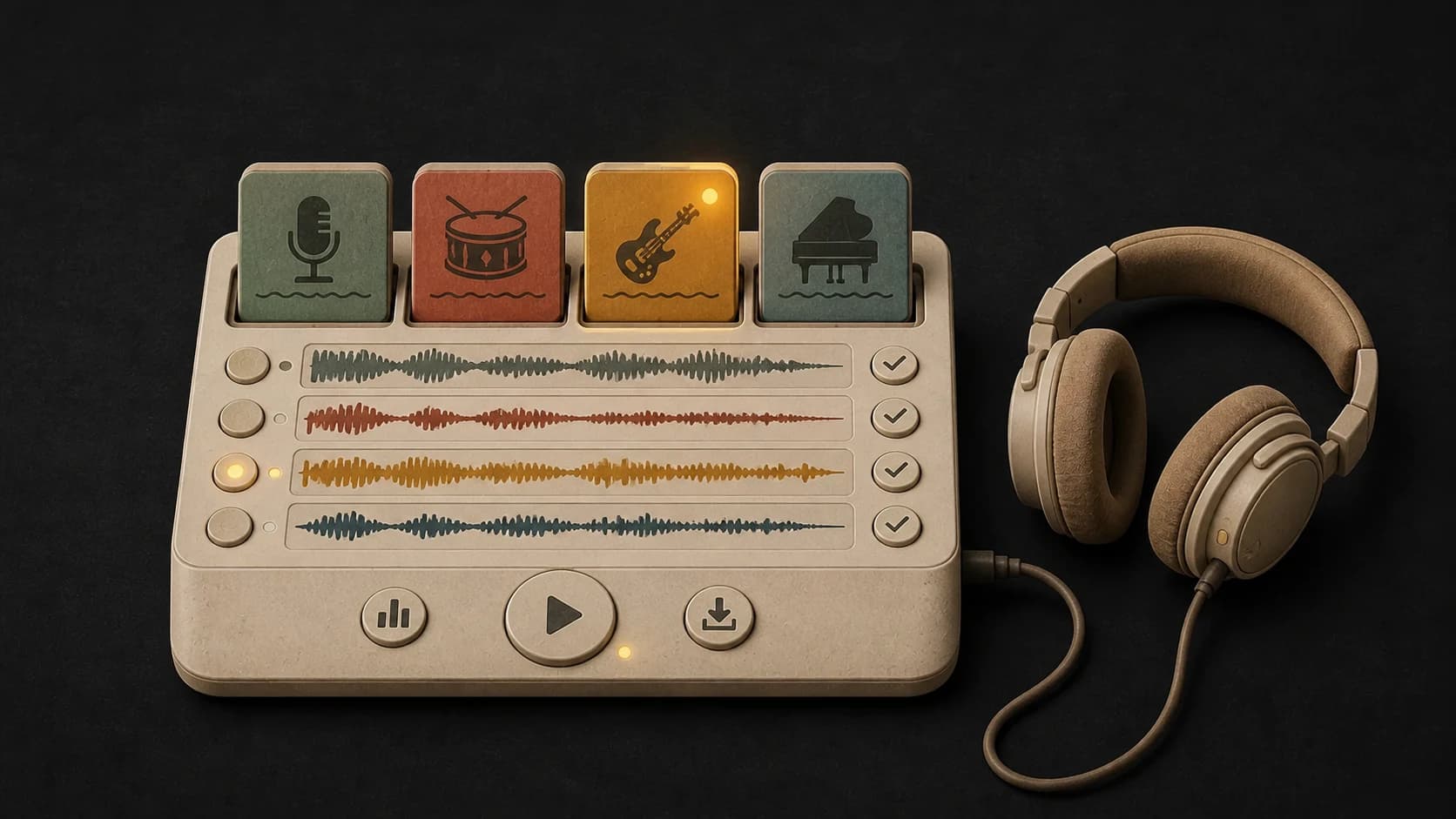
Play each returned stem on the page and check for bleed or missing detail before using it in another project.
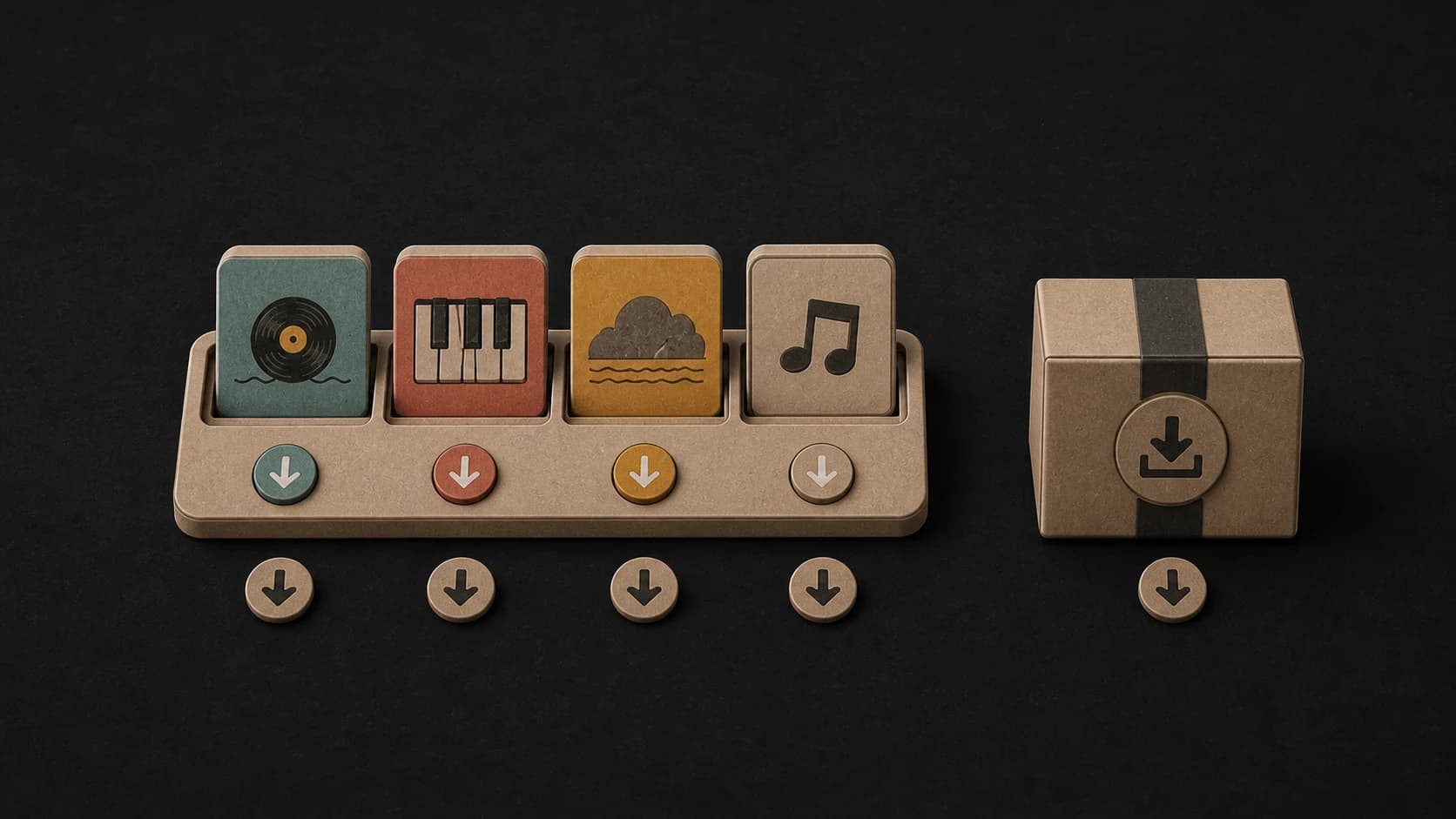
Save only the vocal, drums, bass, piano, or other part you need, or collect the completed stems in one ZIP file.
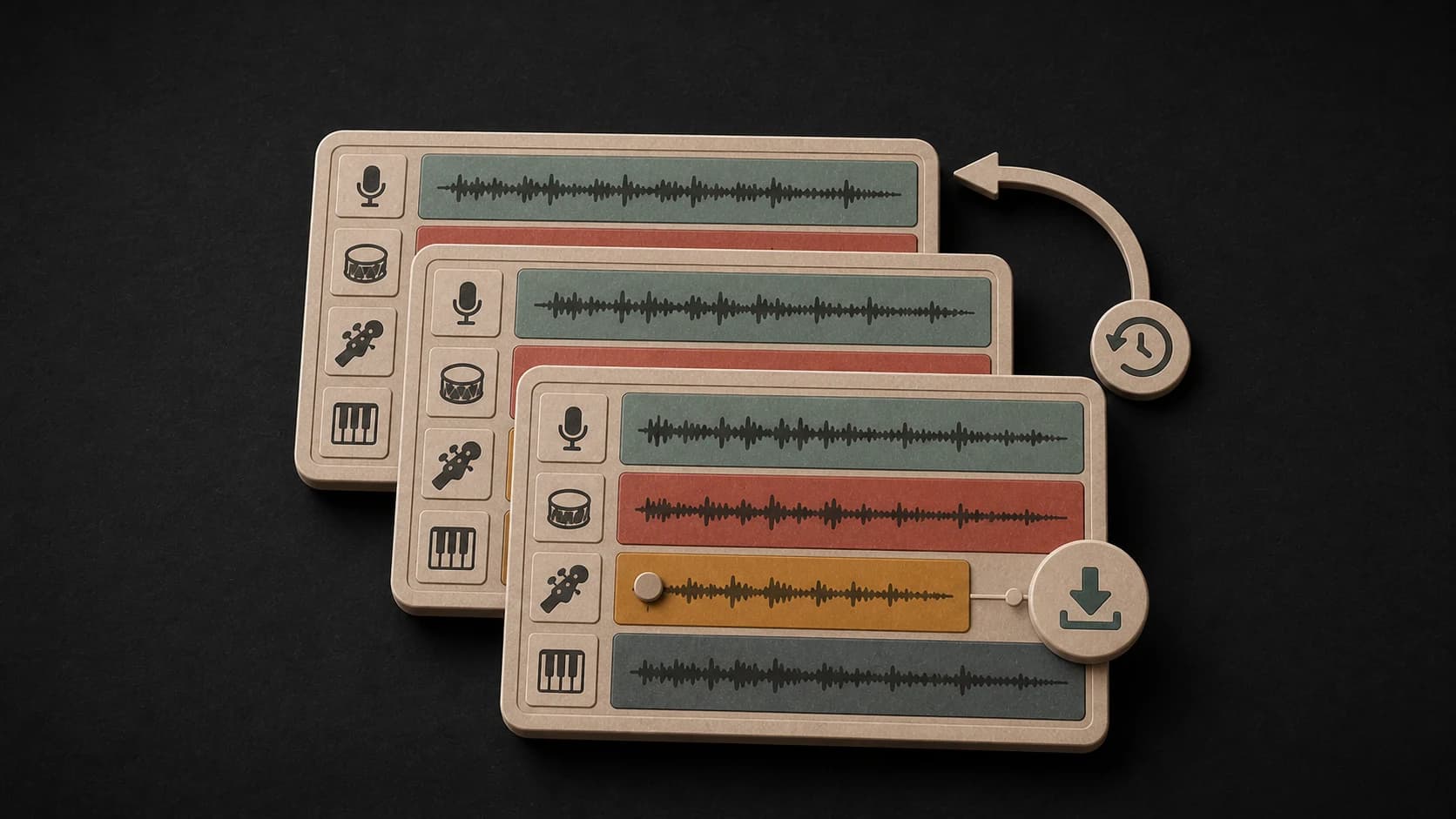
Return to a recent job on the same account and download an available stem again without searching for the original result.
From one file to separate parts
Choose an MP3, WAV, M4A, AAC, FLAC, or OGG file up to 50 MB.
Pick two, four, or five stems, then confirm which returned parts you want.
Play the completed stems, save individual MP3 files, or download the full set as a ZIP.
Before you split
A clean file helps, but separation is never identical for every mix. These checks keep the result and the cost predictable.
Ways to use the result
Remove or reduce one instrument while you play or sing against the rest of the arrangement.
Pull out vocals, drums, or bass from a track you may use, then arrange those parts in a new session.
Listen to the returned parts separately to hear how the rhythm, low end, vocals, and accompaniment work together.
Start free. Upgrade when you need more.
 Stem Splitter6 credits per splitIncluded from Starter
Try it out — no card required.
No credit card required
Perfect for creation, image-to-song, and song extension.
Save 40%
All 7 model families


Wave 5.5 · ElevenLabs Music · Lyria 3 Pro · MiniMax 2.6 · Mureka 9 · Stable Audio 2.5 · MusicGen
Cancel anytime · No lock-inUnused subscription credits expire at renewal or when the billing interval changes.
Best for commercial releases and advanced song editing.
Save 40%
All 7 model families
Wave 5.5 · ElevenLabs Music · Lyria 3 Pro · MiniMax 2.6 · Mureka 9 · Stable Audio 2.5 · MusicGen
Cancel anytime · No lock-inUnused subscription credits expire at renewal or when the billing interval changes.
For power users working across MIDI, video, and high-volume output.
Save 40%
All 7 model families
Wave 5.5 · ElevenLabs Music · Lyria 3 Pro · MiniMax 2.6 · Mureka 9 · Stable Audio 2.5 · MusicGen
Cancel anytime · No lock-inUnused subscription credits expire at renewal or when the billing interval changes.
FAQ
Clear answers about uploads, split modes, results, credits, and usage rights.
You can upload MP3, WAV, M4A, AAC, FLAC, or OGG audio files up to 50 MB.
Two-stem mode returns vocals and instrumental. Four-stem mode returns vocals, drums, bass, and other. Five-stem mode also separates piano or keys.
Not always. Dense arrangements, layered instruments, reverb, and heavy effects can leave some sound from another part. Listen to each result before using it.
The public splitter currently returns playable MP3 stems. You can download them one by one or collect the set in a ZIP.
Yes. The page shows the credit cost before processing and asks you to sign in before a paid split starts.
That depends on the rights to the source recording and composition. Splitting a track does not give you permission to use music you do not own or license.
Keep exploring
Create a source track, remix it, find its tempo, or turn supported songs into note data.
Upload the source, choose two, four, or five stems, and review the cost before processing.
Included from Starter · 6 credits per split