01
Name each state
Write calm, alert, action, success, failure, or another clear state instead of asking for one vague dynamic track.
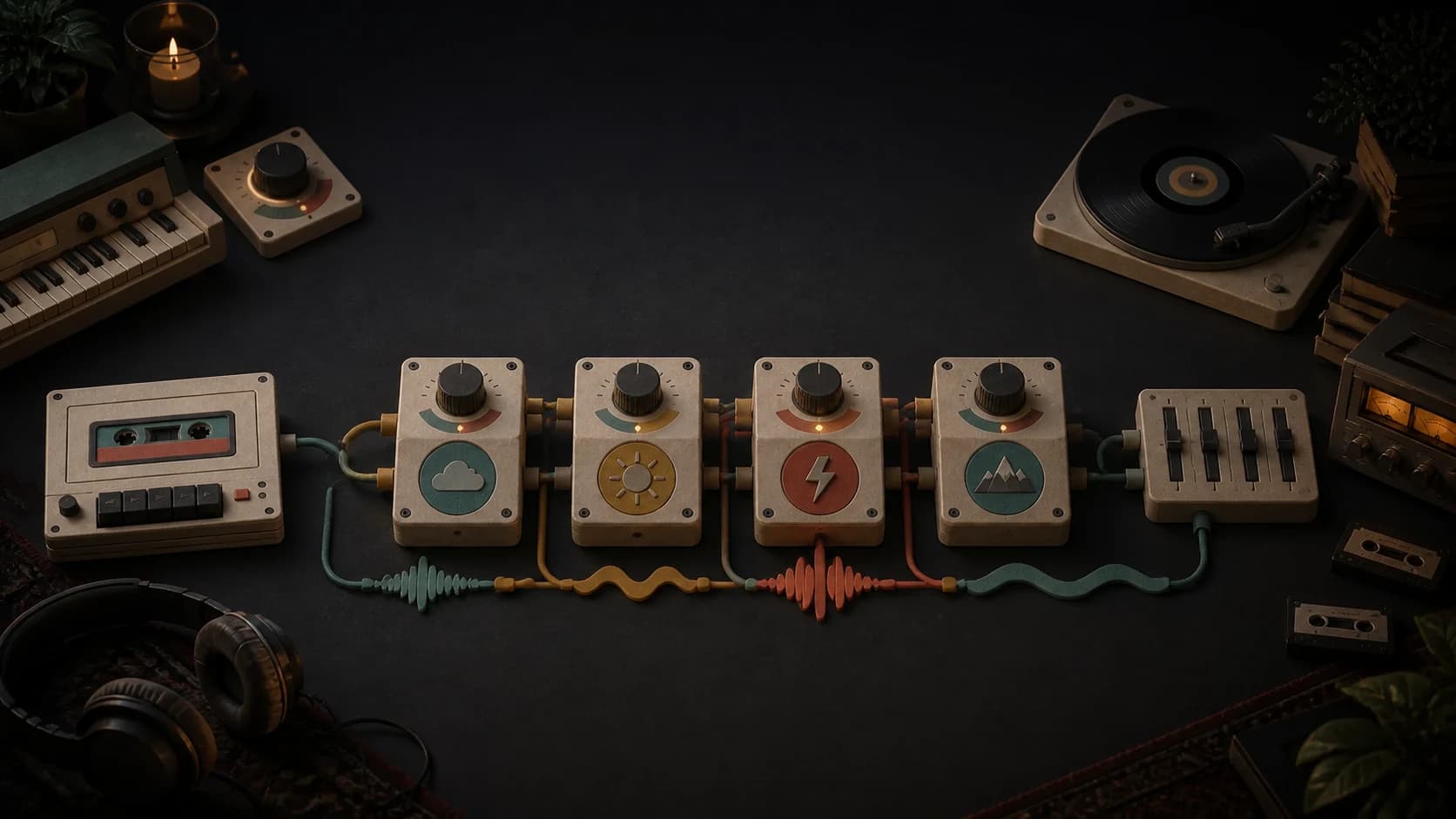
Plan related music for calm, tension, action, and resolved states. Generate the versions, then connect and trigger them inside your own project.
Start with the state, motif, and intensity
First 2 songs freeEvery model on paid plans from $5.99/moSee plans ↓
Adaptive soundtrack examples
These original instrumentals cover exploration-to-tension, a controlled action state, and a resolved results cue.
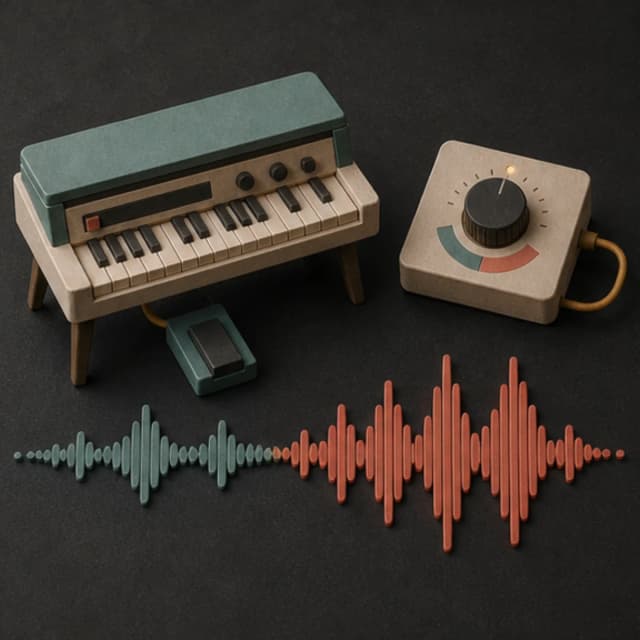
“Game soundtrack instrumental that begins with sparse ambient pads and a three-note motif, then adds low percussion, pulsing bass, and tighter strings for a clear tension state, no vocals, no oversized trailer hit”
Pick a track to hear it and see the prompt behind it.
Plan the state set
Describe what stays recognizable and what changes when the experience moves to another state.
Write calm, alert, action, success, failure, or another clear state instead of asking for one vague dynamic track.
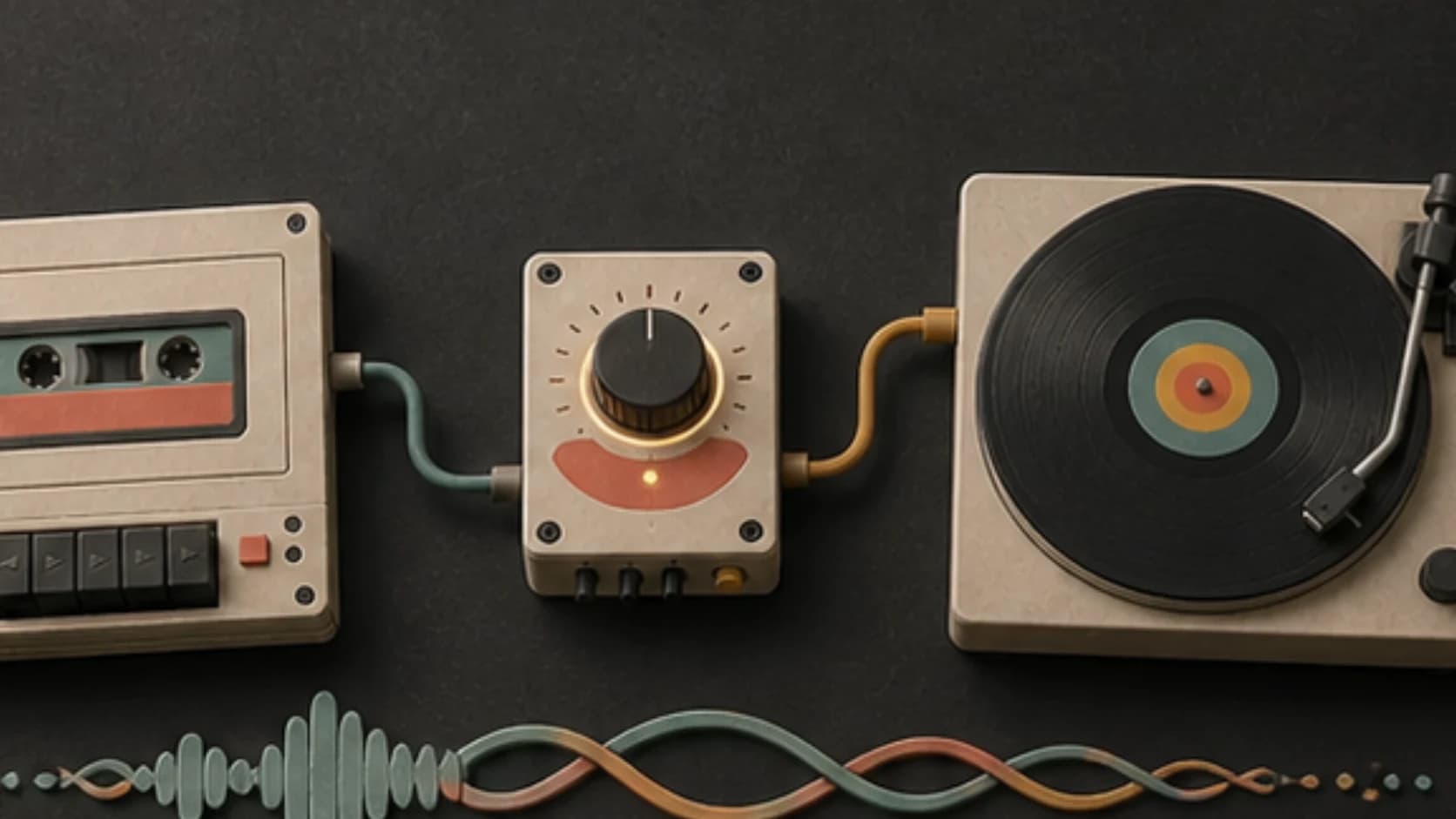
Reuse a short melodic or rhythmic idea so separate versions still feel like the same soundtrack.
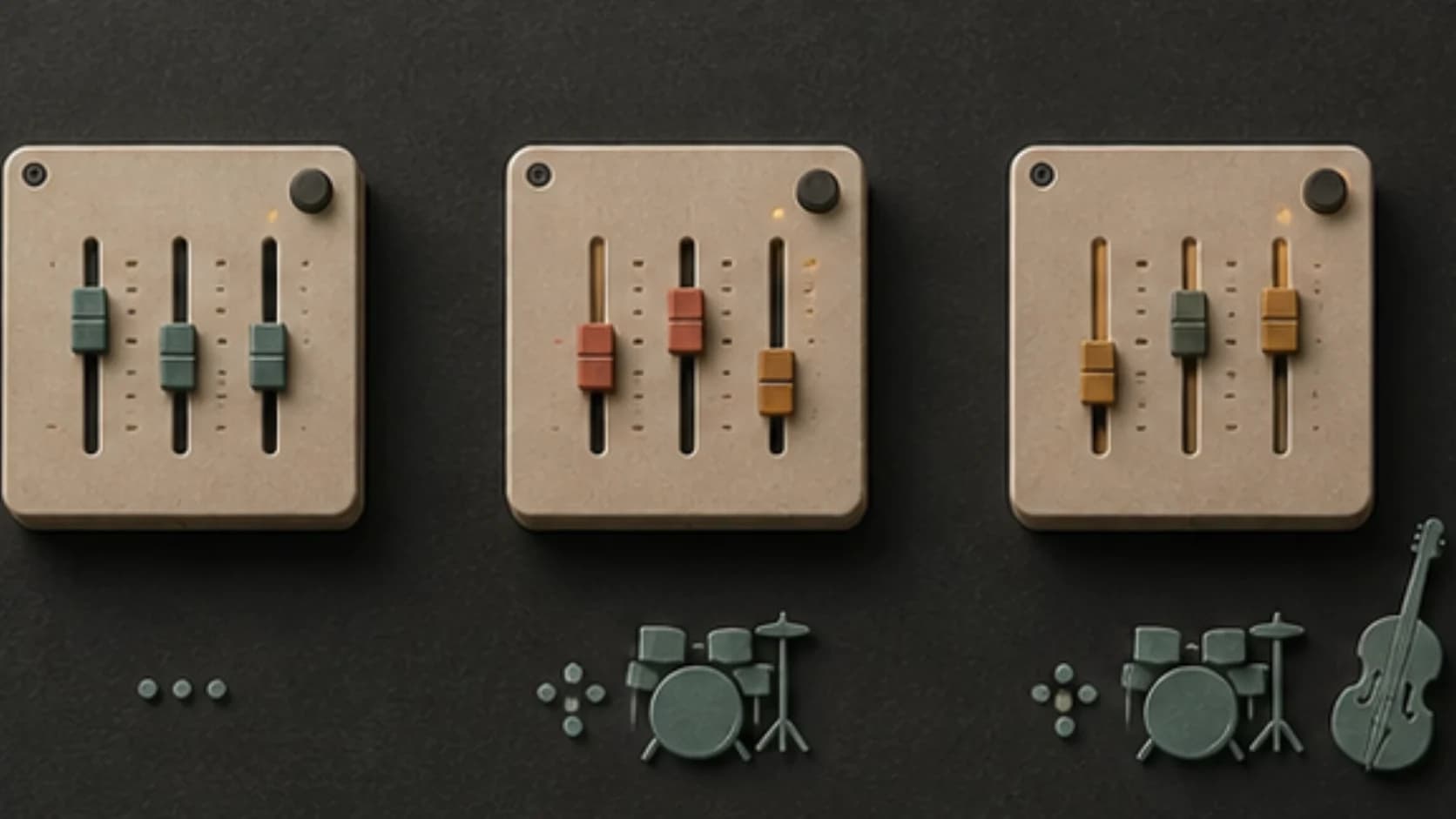
Add drums, bass, harmony, or brighter instruments as intensity rises rather than changing everything at once.
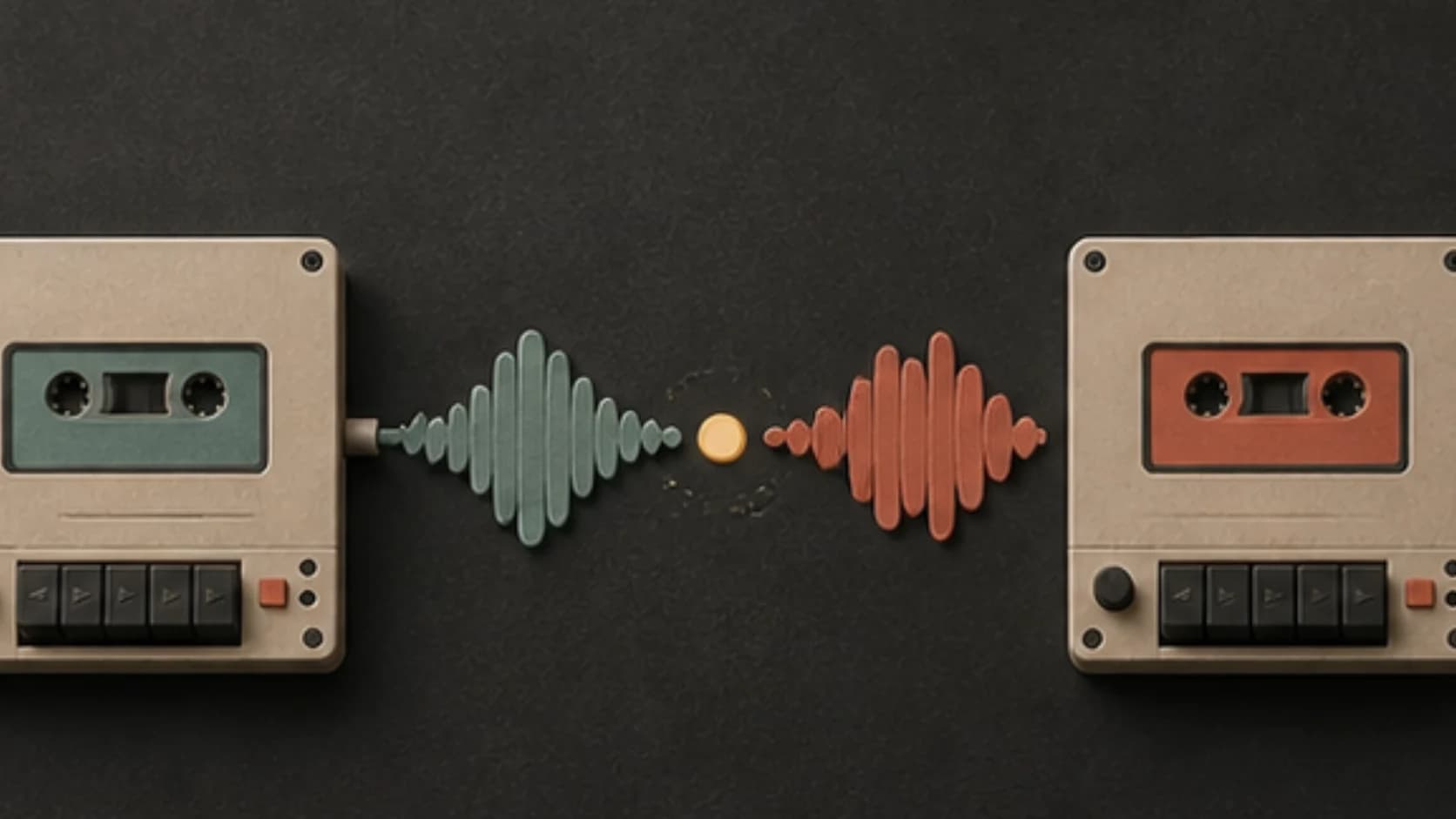
Ask for clean openings and endings, then test crossfades or cuts in your editor or runtime system.
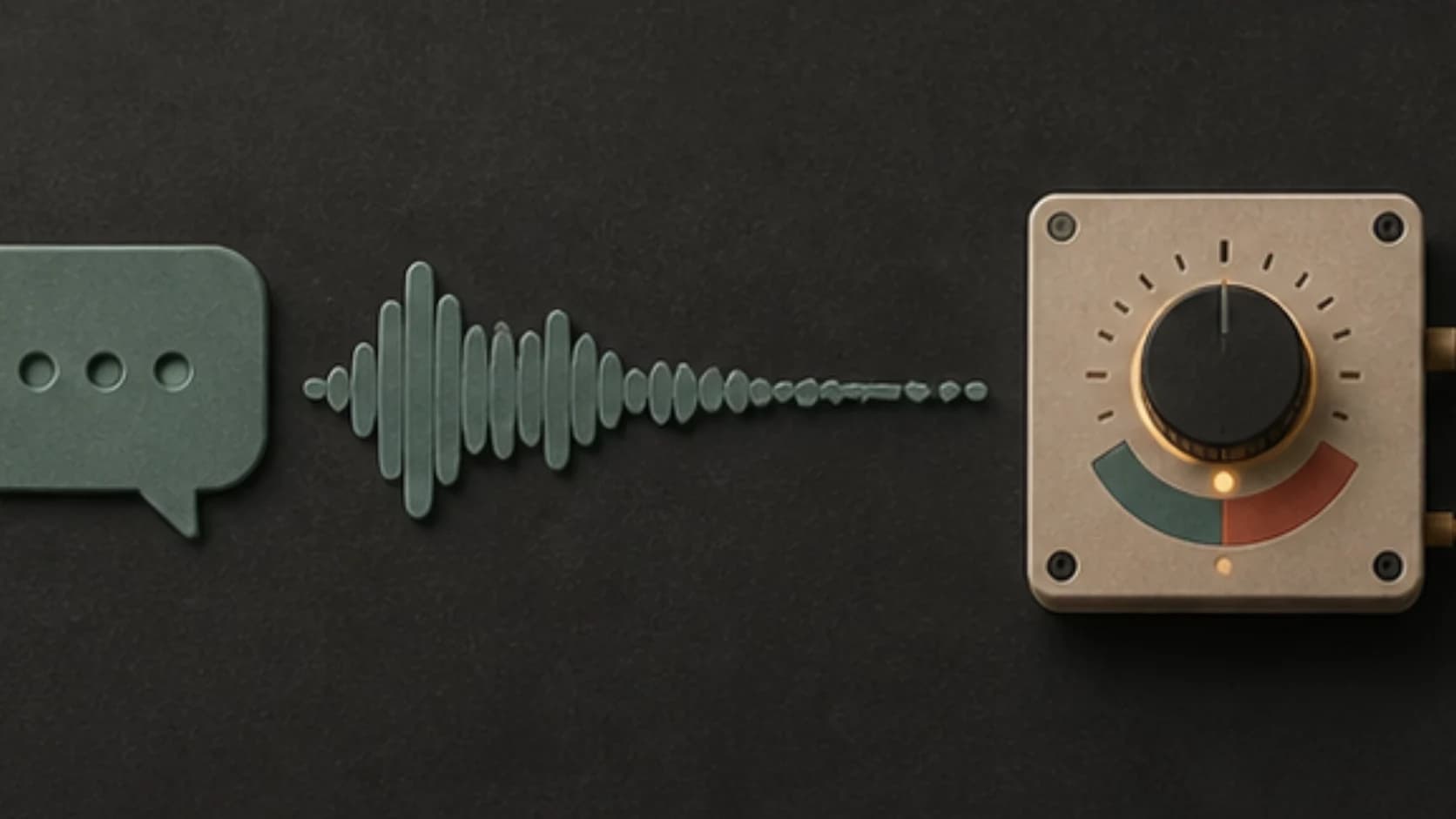
Use restrained leads and controlled volume when the state plays under instructions, speech, or effects.
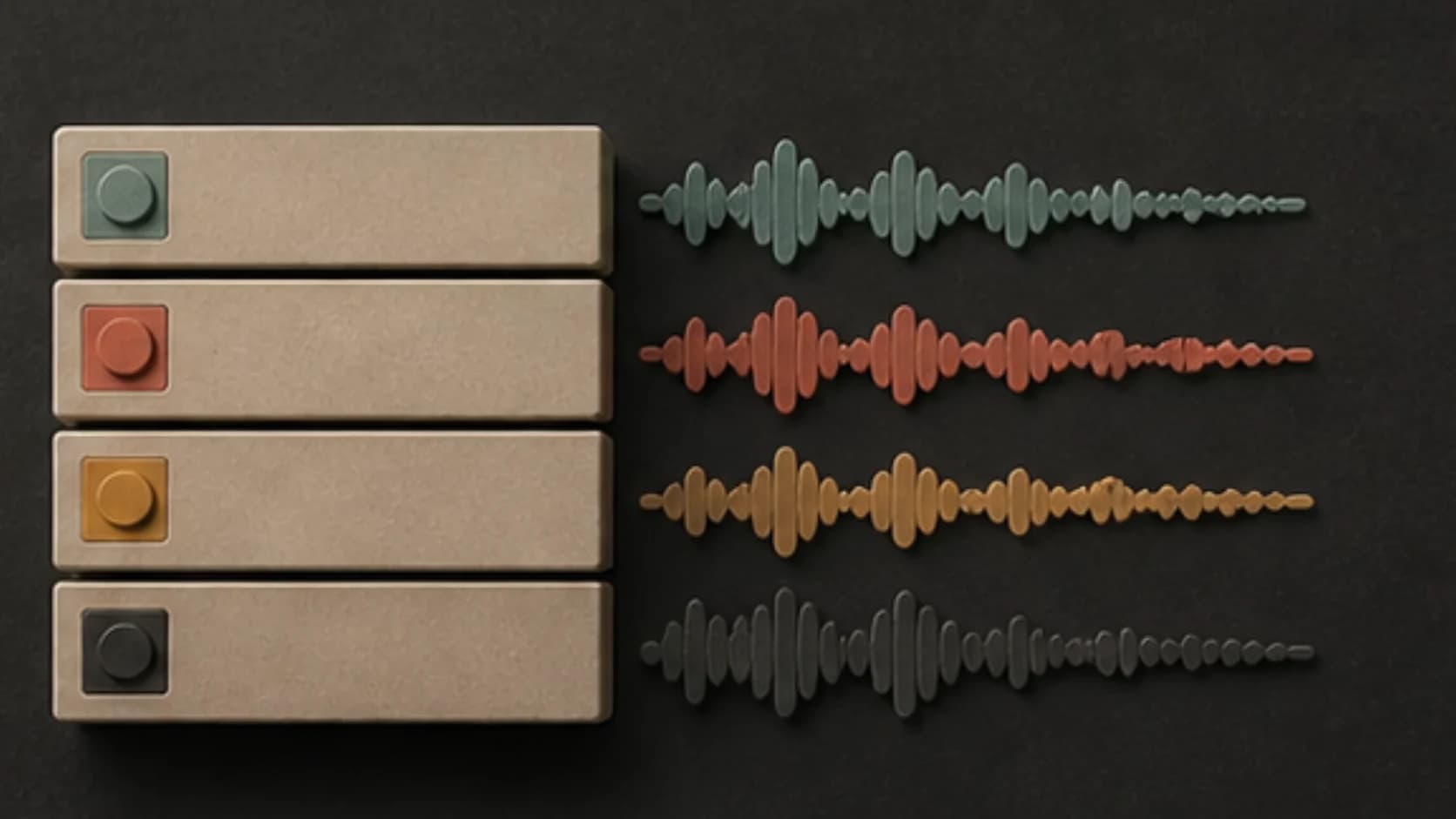
Keep the versions together and label them clearly before you implement them in the project.
State recipe
A shared motif plus one clear change makes separate outputs easier to compare.
“Exploration state built around a three-note synth motif, sparse pads and light pulse1; add low percussion, pulsing bass, and tighter strings for tension2, no vocals and no oversized trailer hit.”
How it works
Generate related audio files, then implement the behavior outside MusicWave.
Choose the motif, instruments, tempo range, and tone that should connect the states.
Make calm, tension, action, or resolved versions with one clear change at a time.
Use your game engine, app, editor, or audio middleware to trigger and blend the files.
Where state music helps
The generator supplies audio; your project decides when and how each file plays.
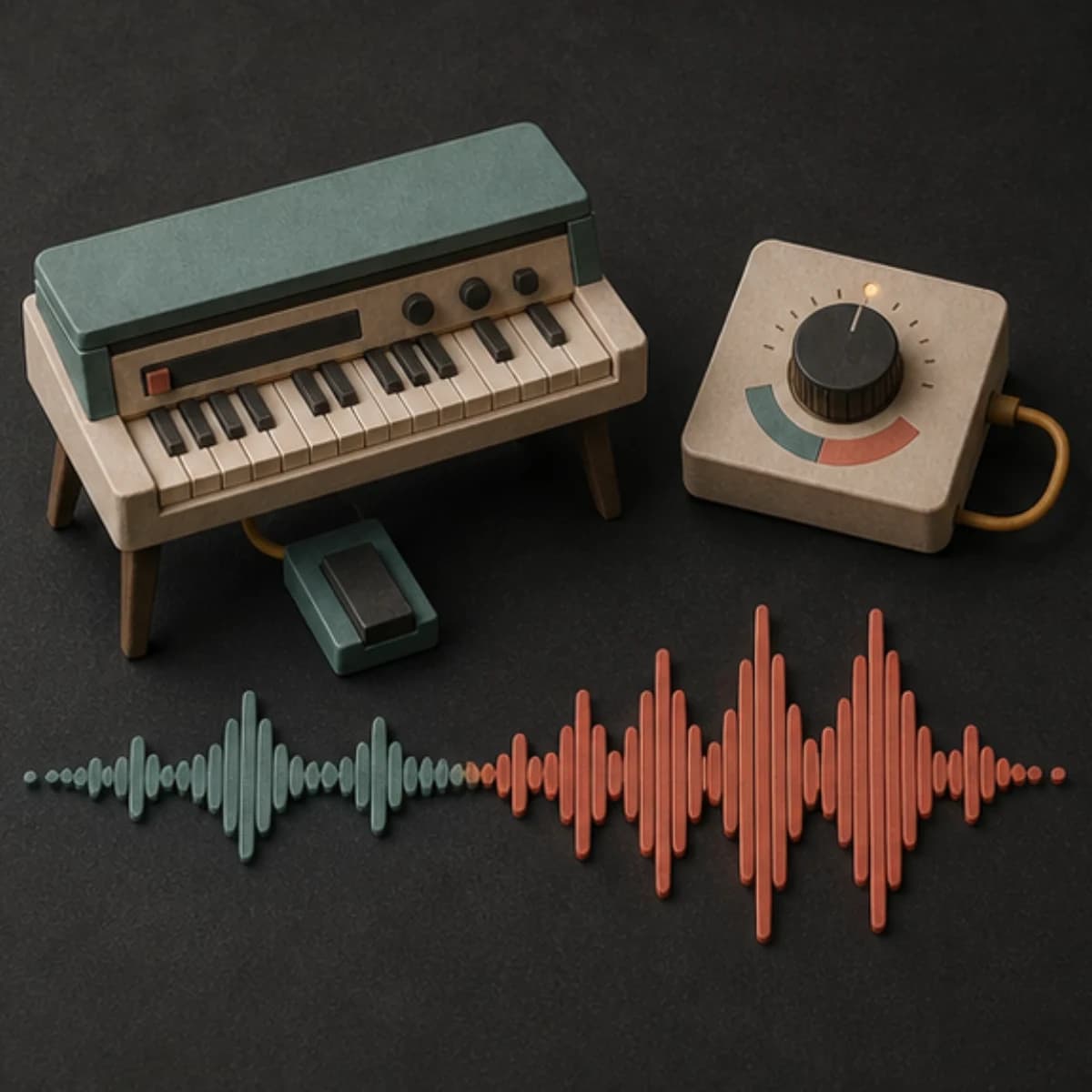
Create related exploration, alert, combat, and results versions around one musical identity.
Plan warm-up, working, recovery, and finish states with controlled changes in pace and density.
Prepare quiet, active, and closing cues for an exhibit controlled by sensors or staff.
Make related cues for branch points, tension changes, or alternate endings.
Start free. Upgrade when you need more.
Try it out — no card required.
No credit card required
Perfect for creation, image-to-song, and song extension.
Save 40%
All 7 model families


Wave 5.5 · ElevenLabs Music · Lyria 3 Pro · MiniMax 2.6 · Mureka 9 · Stable Audio 2.5 · MusicGen
Cancel anytime · No lock-inUnused subscription credits expire at renewal or when the billing interval changes.
Best for commercial releases and advanced song editing.
Save 40%
All 7 model families
Wave 5.5 · ElevenLabs Music · Lyria 3 Pro · MiniMax 2.6 · Mureka 9 · Stable Audio 2.5 · MusicGen
Cancel anytime · No lock-inUnused subscription credits expire at renewal or when the billing interval changes.
For power users working across MIDI, video, and high-volume output.
Save 40%
All 7 model families
Wave 5.5 · ElevenLabs Music · Lyria 3 Pro · MiniMax 2.6 · Mureka 9 · Stable Audio 2.5 · MusicGen
Cancel anytime · No lock-inUnused subscription credits expire at renewal or when the billing interval changes.
FAQ
What MusicWave creates, what you implement, and how to keep state versions connected.
No. MusicWave generates audio. You connect states, triggers, fades, and conditions in your game engine, app, editor, or middleware.
Yes. Repeat the motif and sound palette in every prompt, then describe the specific change for each state.
Create and save each version separately so you can compare it against the shared rules and replace only the state that misses.
Not necessarily. Check tempo, phrasing, endings, and crossfades in the tool where the files will be implemented.
Usage rights depend on your MusicWave plan and the material you supplied. Check the current license before release.
Keep exploring
Create a game cue, make a repeat-friendly version, prepare interactive audio, or extend a state that is too short.
Choose what stays recognizable, describe what changes, and generate the first version.
Start free — no credit card needed.